01 / GET ORIENTED
Start with your team’s workspace.
Your administrator provides your VerboFlex address and account. Sign in, change your password if prompted, then open a product. This website is a guide, not a sign-in page.
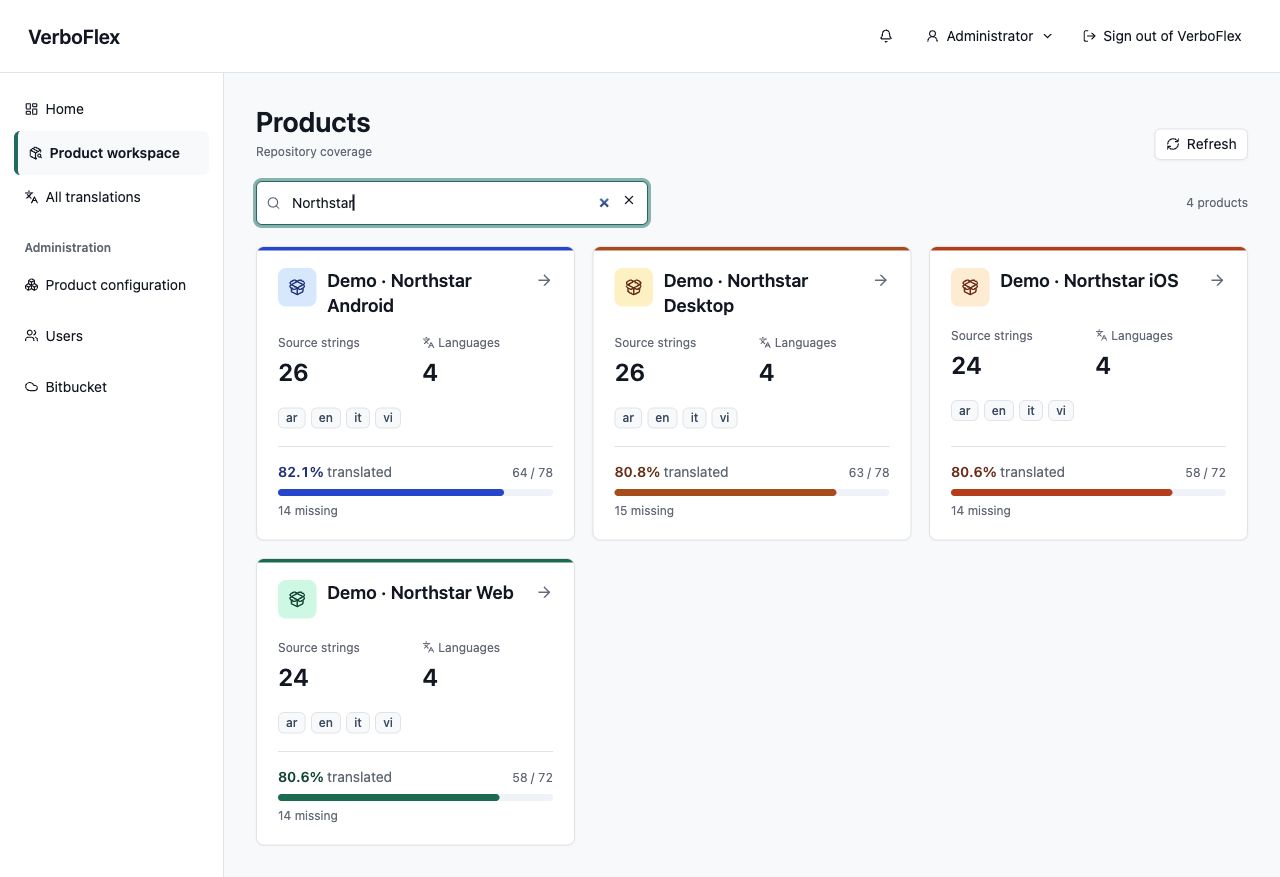
- Open your product. Search the product list and compare supported languages and coverage. Open its Strings workspace to start translating.
- Open Strings. Search for a key or text and choose the languages you need.
- Save a first draft. Edit an eligible translation, check its character limit and save. Your repository is unchanged until a later submission.
See it in the app
 View full size
Search products and compare source strings, supported languages, missing translations and repository coverage.
02 / FOR ADMINISTRATORS
Connect a product to its source.
A product groups its repositories, branches and translation sources. Configure these in the product setup before inviting the team to translate.
- Choose the provider. For Bitbucket Cloud, configure the organization’s connection and choose a repository. For public GitHub, enter the owner/repository or its URL.
- Define translation sources. Select the branch and folder for each source. Keys and translations can come from the same repository or from separately configured sources.
- Check the preview. Confirm the detected format, base language and file mapping. Resolve unsupported or ambiguous layouts before proceeding.
- Publish the configuration and import. Follow the import status. Once it succeeds, open the product’s overview and translations.
What each provider supports
| Capability | Bitbucket Cloud | Public GitHub |
|---|---|---|
| Import and refresh | Yes | Yes |
| Local editing and review | Eligible formats | Eligible formats |
| Submit a pull request | Yes | Not supported |
| Private repositories | With provider access | Not supported |
Formats and editing
Android XML, Qt .ts, JSON and Apple
.strings support import and eligible edits. XLIFF supports
import and reading; XLIFF editing and write-back are not available.
Structure matters: a recognized extension alone does not guarantee that
every file construct can be edited.
03 / FOR TRANSLATORS
Keep the original in view.
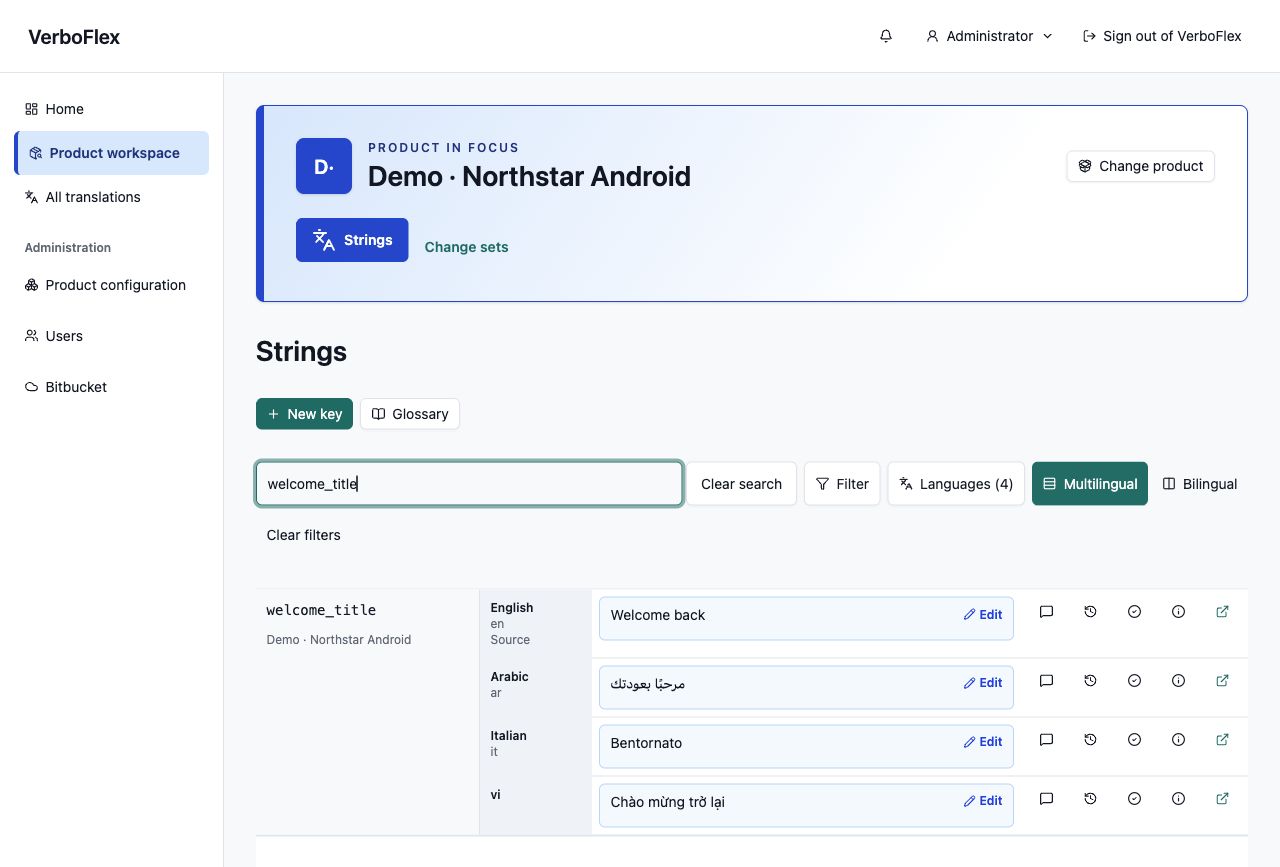
Use the multilingual view to compare language rows under each key, or the bilingual view to focus on a source and target. Choose up to 20 visible languages in the multilingual view.
Find the next string
Search by text or key, then narrow the results by product, language, work state or length violation. Type into searchable dropdowns to find an option. The workspace loads results in pages; filters apply to the query, not just the rows already on screen.
Choose a work queue
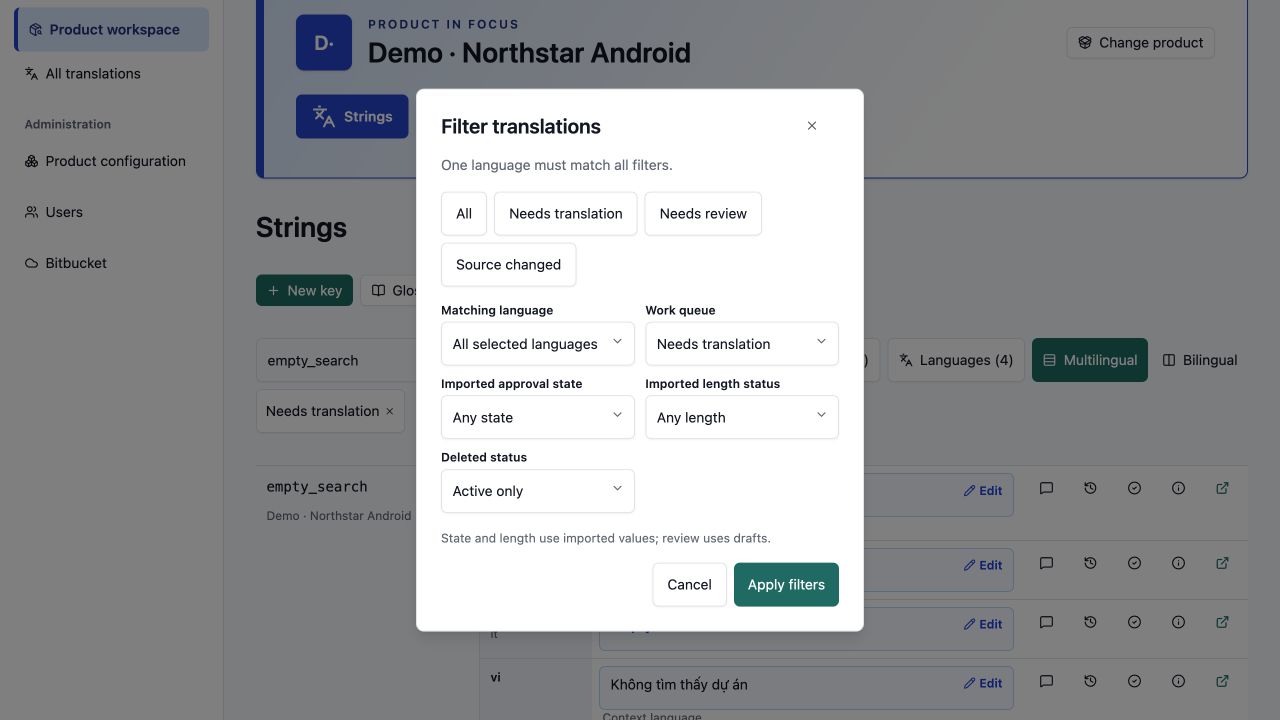
Open Filter and choose Needs translation, Needs review or Source changed. Choose a matching language to focus the result. Other language rows remain visible as context; one language must satisfy all selected filters. Imported state and length filters use repository values, while review filters use drafts.
See it in the app
 View full size
Filter by language, missing translations, review needs or source changes. Searchable selectors make long lists easier to navigate.
Each key shows its product. Only languages supported by that product appear, including in All translations. Pending repository changes are highlighted in amber; length violations are marked in red.
Edit and save
See it in the app
 View full size
Compare English, Arabic, Italian and Vietnamese together. Each key keeps its product name and editing tools in view.
- Select an editable translation field. Compare the text with the source and the other visible languages.
- Enter the new text. If a maximum length is set, watch the counter. Over-limit values stay visibly marked even outside the focused editor.
- Select Save. The proposal is stored as Draft; it does not change a repository file.
- Use comments to explain wording or mention a teammate. Their in-app notification links back to the discussion.
Fill a missing translation
Needs translation includes empty values and entries absent from a supported target language. It follows the selected languages and excludes deleted entries. An absent entry has no imported approval state or length status, so clear those filters when looking for missing entries. Product coverage counts missing key-language pairs from the latest import; the search groups results by key and also considers current translation drafts.
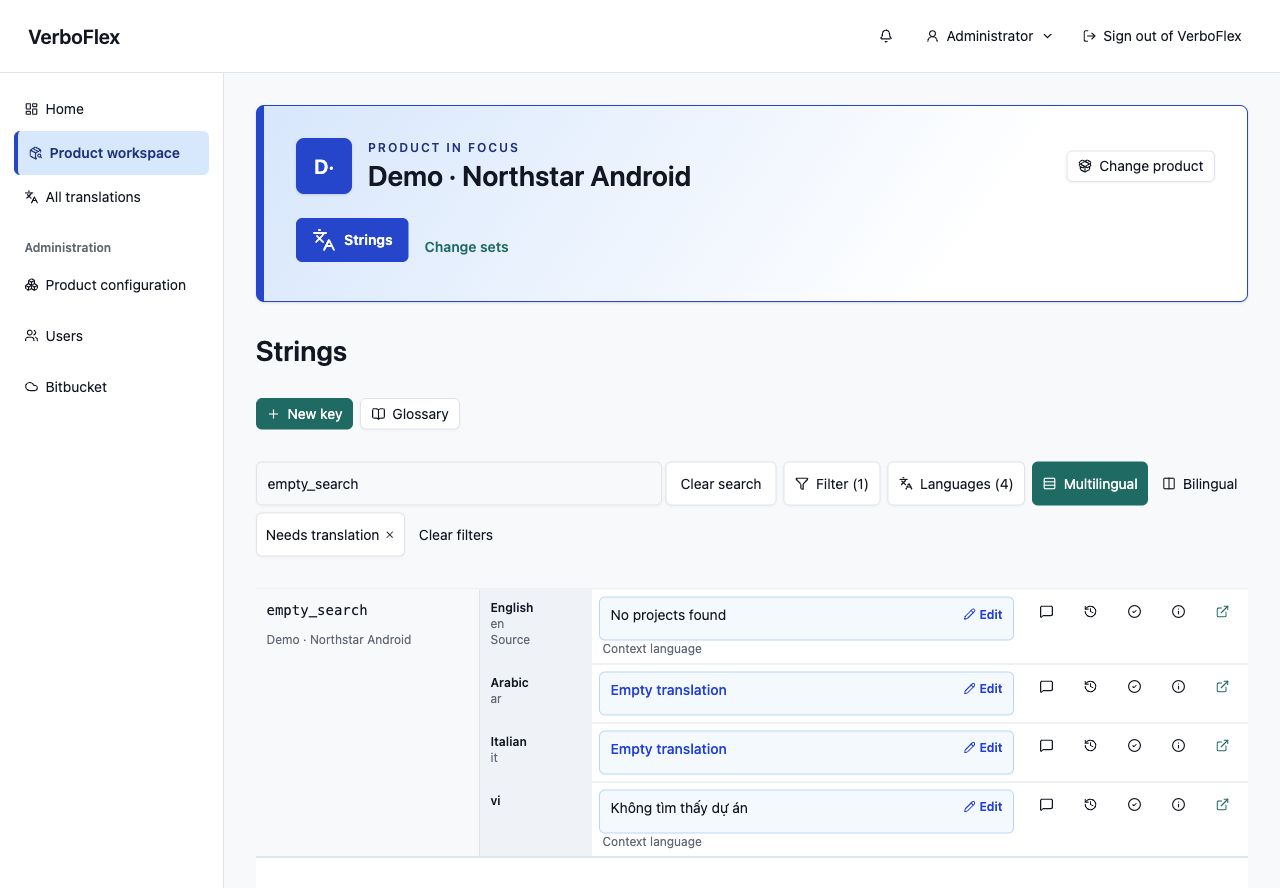
Use Needs translation, then select an Empty translation field to edit an existing empty value. When the entry itself is absent, select Add translation. VerboFlex adds eligible entries to an existing mapped file; it does not create new language files. Unsupported structures remain read-only.
See it in the app
 View full size
Needs translation finds empty values while keeping other languages visible for context. Only supported product languages appear.
Add a key
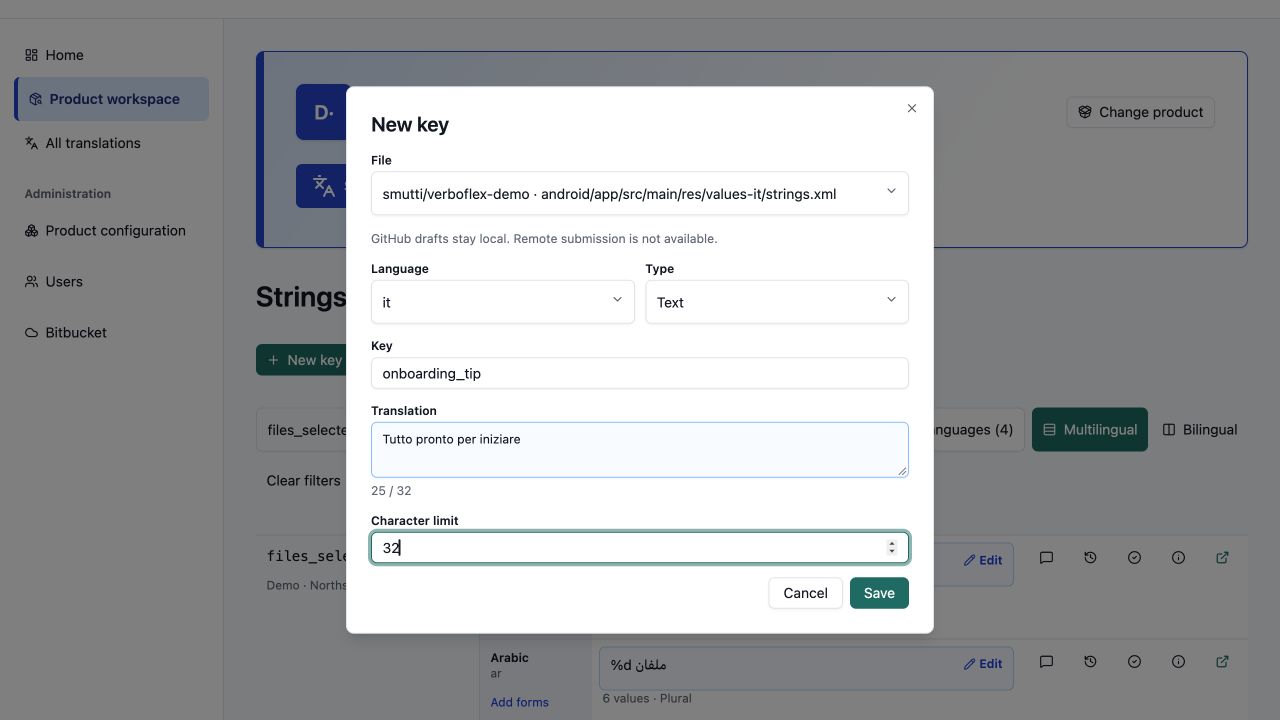
Use New key to choose an existing file and enter a key and
text. Select the language, entry type and optional character limit, then
save. New entries are drafts for review. Android XML, Qt, JSON and Apple
.strings support new scalar entries in eligible files.
See it in the app
 View full size
Choose a mapped file, enter a key and translation, and set an optional character limit. Save a draft for review.
Keep plural forms together
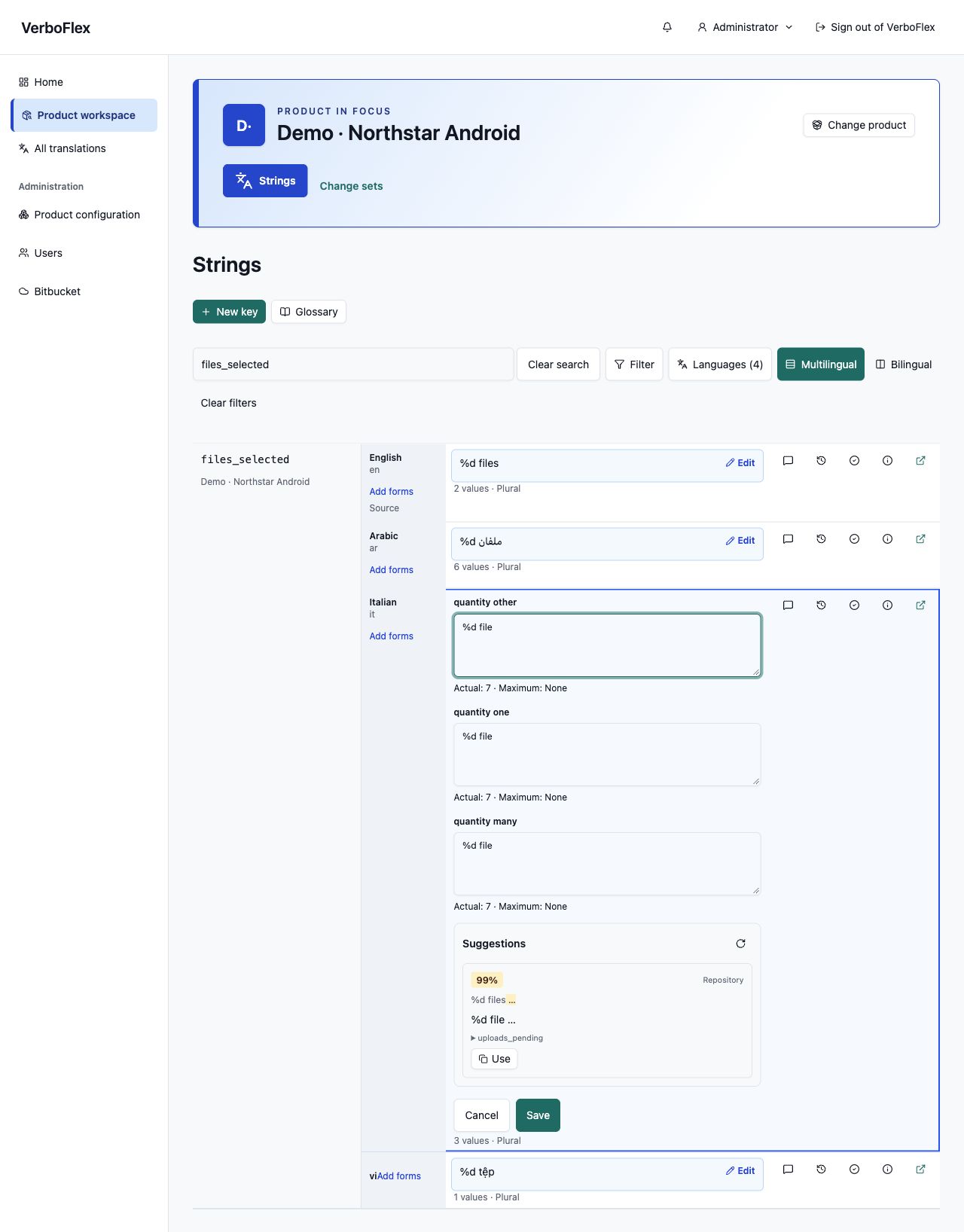
Open a plural entry to edit its individual forms. Android and Qt support
native plurals; Add forms fills missing supported
categories. Keep placeholders such as %d intact and check each
form before review. ICU messages, JSON plurals and Apple
.stringsdict
authoring are not supported.
See it in the app
 View full size
Work on individual Android and Qt plural forms. Keep quantity placeholders intact and add missing supported categories.
Reuse wording
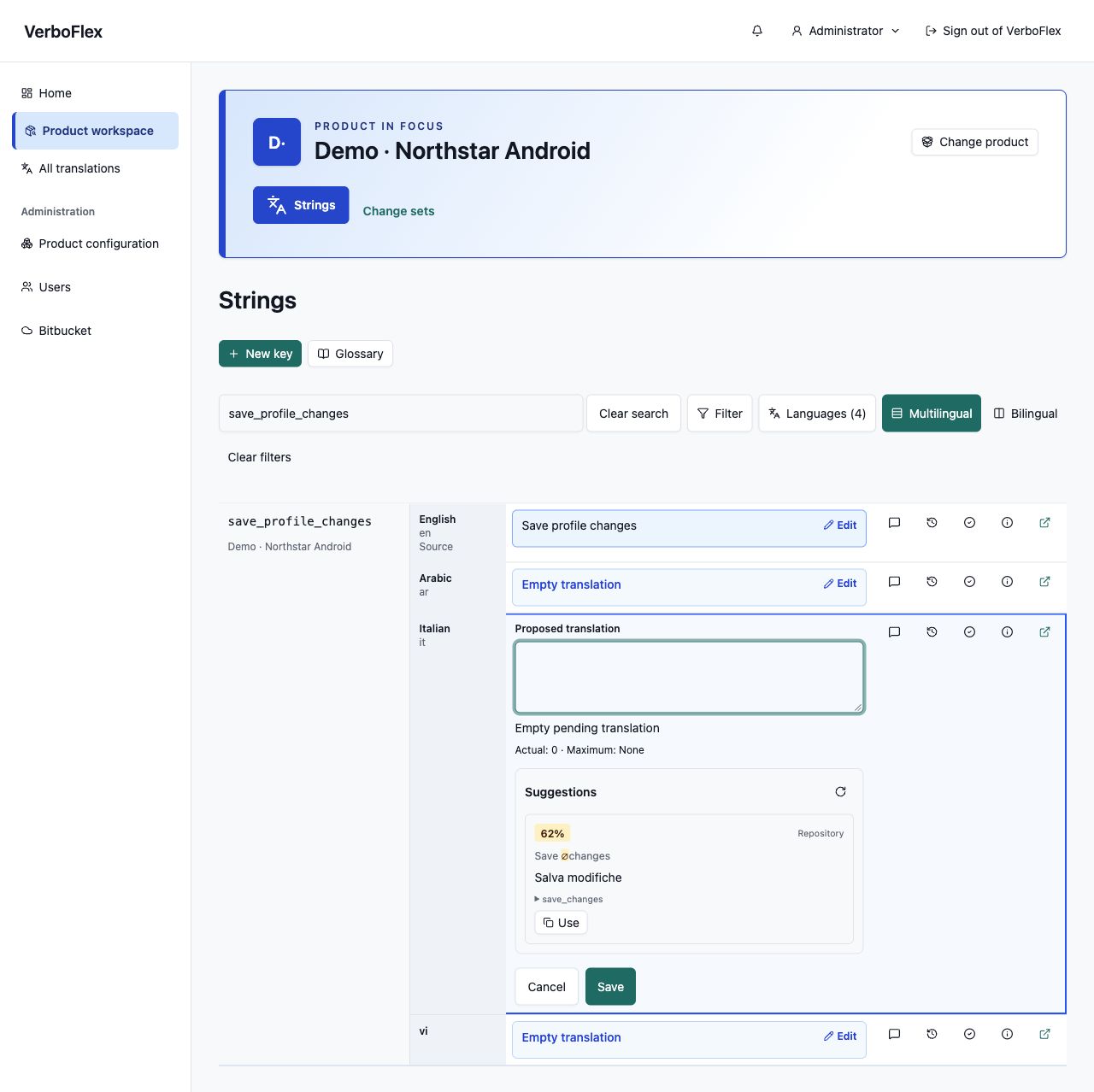
Open Suggestions while editing to find exact or similar wording in the same product and language pair. Use copies a suggestion into the editor; check it and save. Glossary hints show preferred and forbidden terms. Neither suggestions nor glossary hints approve a translation for you.
See it in the app
 View full size
See exact or similar wording from the same product. Compare the source, copy a suggestion, then adapt it before saving.
The match percentage describes source similarity, not translation quality. Check the suggestion’s origin and adapt placeholders and wording before saving. Reviewers and administrators can manage terms through Glossary in the product workspace; its hints remain advisory.
Understand length limits
VerboFlex counts user-perceived characters, including combined characters. A value over its configured maximum can be kept as a draft, but cannot be approved until it satisfies the limit. Use the length filter to find these strings again.
REVIEW WEB APPLICATIONS
Review Angular translations in a browser.
For configured ngx-translate projects, choose the exact JSON value, a registered screen scenario and a desktop or mobile viewport. Save your translation, then generate a fresh screenshot with synthetic application data.
The initial scenarios cover a sites list, an open tenant dialog and its length validation. Required interpolation parameters remain protected during editing and review. Older images are marked stale after the text or capture selection changes.
An administrator selects the locale catalogs and configures the isolated web runner. See the Angular setup guide.
04 / REVIEW IN CONTEXT
Generate screenshots from your Compose code.
For configured Android projects, VerboFlex renders a registered Compose preview with your saved translation. Inspect how the wording fits the screen alongside the source text, proposal and character limit.
- Open a translation detail. Translation content and review actions are on the left; screenshots are on the right. On a narrow screen, screenshots follow the review content. Existing personal captures load automatically.
- Save your translation. Screenshots use saved text. Unsaved edits must be saved before requesting a new capture.
- Choose the screen. Open Screenshot options to choose an available preview and its light or dark appearance.
- Select Generate screenshot. VerboFlex renders the selected preview in the background. Queueing, rendering and elapsed time remain visible; generation can take several minutes. You can leave and return to the result.
- Review the result. Open the image at full size to inspect wrapping and spacing. Approve or reject the proposal using the usual review actions. Generating an image does not approve or publish the translation.
Match the image to your proposal
A capture uses fixed code and translation revisions and the selected saved proposal version. Other strings use their imported translations. When you edit the text or save a newer proposal, the old image stays available with a warning. Save and generate again to review the new wording. Opening the page or saving a draft never starts a render automatically.
If there is no screenshot, the translation remains available for review. When generation is unavailable, ask your administrator whether the product has a registered preview and a configured runner. Technical source references and revision history remain under Technical details and history.
Developer setup
Register a callable, zero-argument
@Preview @Composable function that supplies an example screen
state. Configure the application-code mapping, connect the translation
resources and prepare the Android capture runner and dedicated background
worker. Code and translations can use separate repositories.
The image represents that preview’s fixture state. Live navigation, network responses and device services need an explicit fixture; this is not a recording of a running device. A key linked to a preview may not be visible in every fixture state. The integration currently targets Android Compose previews.
Read the Compose integration guide and prepare a Linux capture runner.
05 / FOR REVIEWERS
Approve first. Submit when ready.
Products configured for approval commits save each approved change as a separate commit on their working branch. Saving a draft still keeps it in VerboFlex. Open Change sets to follow the save status and inspect each commit. Once all saves finish, use Create pull request to publish the accumulated changes to the configured destination. Later approvals also update an open PR.
Administrators configure each source in Product configuration → Approval branches. The Working branch receives the approval commits; the PR destination receives the proposed merge only when requested. Products with multiple sources have separate branch histories to select in Change sets.
Other products use the reviewed change-set workflow below.
- Compare the proposal. Review the current text, proposed text, comments and length constraints. For configured Compose projects, generate a screenshot to inspect the saved translation in its screen context.
- Make a decision. A reviewer or administrator can approve or reject. Resolve stale source data and exceeded limits before approval.
- Prepare a change set. Select eligible approved changes and review the prepared file changes, repository and target branch.
- Submit to Bitbucket. Confirm the submission and follow the background job. Open the resulting pull request for the repository’s normal review and merge process.
Approval is not a merge. A successful submission creates repository changes and a pull request; merging remains part of your team’s repository workflow.
Find pending work
Amber marks local changes that have not been sent to the repository. Use Needs review in Strings to find proposals requiring attention. In Change sets → Pending changes, choose the proposal state and select complete, eligible approved proposals to review together before submission. Red length violations and stale source data must be resolved before approval.
06 / WHEN SOURCE FILES CHANGE
Refresh, then resolve what changed.
Refresh imports the latest configured source state in the background. A branch update or rebase can change the source behind a proposal. VerboFlex checks that relationship before allowing review or submission to continue.
- Unchanged source: continue working on the current proposal.
- Changed source or stale proposal: open the affected item, compare the current source with the proposed text and reconcile it before retrying review or submission.
- Deleted translation: the translation and its associated local data are removed. Do not rely on VerboFlex to archive strings deleted from the repository.
- Failed import: inspect the reported issue and fix the source configuration or file. A failed import does not activate a partial replacement catalog.
After rebasing an existing Bitbucket pull request, open its change set and select Check status. VerboFlex checks the current commits, Git conflicts and preservation of the submitted changes. The original submission remains available in its history.
Resolve Git conflicts in the repository, then check status again. Unexpected PR edits require review. If the imported source also changed, refresh the project and reconcile affected proposals before submitting again.
07 / YOUR DAILY STARTING POINT
Pick up where your team left off.
Your dashboard brings together notifications, your recent operations and project updates. It shows three recent project updates, with a link to the full list. Your recent activity also shows three items with a link to all activity.
Product cards show source keys, supported languages, missing translations and overall coverage. Administrators can open the product overview for coverage by language. Coverage measures available translations, not approval. A fully populated language may still need review.
08 / ACCESS
Permissions follow the person.
Users have internal accounts and can hold multiple roles. The API enforces permissions for both the web application and MCP clients.
| Role | Typical work |
|---|---|
| Viewer | Read translations and their context. |
| Translator | Read, propose eligible edits and comment. |
| Product manager / reviewer | Propose edits, comment, approve or reject, and manage eligible submissions. |
| Administrator | Manage users, products and connections, with translation and review access. |
09 / CONNECT YOUR ASSISTANT
Use Codex or Claude Code with OAuth.
Ask your administrator for the installation’s MCP URL. The examples below
use https://verboflex.example/mcp:
replace that placeholder with your actual URL.
Codex CLI
Register the HTTP server and authenticate in the browser. Start with read-only access:
codex mcp add verboflex-oauth --url https://verboflex.example/mcp
codex mcp login verboflex-oauth --scopes verboflex:read
To allow edits, authenticate with both scopes and explicitly grant write access in the consent screen:
codex mcp login verboflex-oauth --scopes verboflex:read,verboflex:writeClaude Code
claude mcp add --transport http --scope user verboflex-oauth https://verboflex.example/mcp
Open /mcp in Claude Code and authenticate. For changes, the
client must request verboflex:write as well as
verboflex:read, and you must grant it in the browser. Read-only
clients cannot modify data.
Try a focused request
- “Show the languages with the most missing translations in this product.”
- “Find Italian translations that exceed their character limit.”
- “Prepare a draft for this string and explain the change.”
MCP keeps the same roles and workflow. A saved proposal is still a draft; approval and repository submission remain separate actions. VerboFlex does not automatically translate your catalog when you connect a client.
Disconnect access
In VerboFlex, open the user menu → Connected apps → Revoke access. This revokes the server-side connection. Signing out of the web app alone leaves connected apps active.
10 / FOR INSTALLATION OWNERS
Run the application separately from this site.
GitHub Pages hosts this static website and guide. VerboFlex itself needs a backend, database and background workers. There is no hosted account signup on this site.
- Application services
- React frontend, FastAPI backend, PostgreSQL, Redis and Celery workers/scheduler. Docker Compose definitions are provided in the application repository.
- Before the first login
- Configure deployment secrets, encrypted provider-token storage, database migrations and the initial administrator account. Serve the app over HTTPS for secure session cookies.
- Remove an account
- In Users, deactivate the account first. Then open More actions → Delete user and confirm the named account. Deletion is permanent: its access is removed, while existing contributions and activity history remain linked to an anonymous identity. To restore access without deleting an account, use Reactivate user.
- Enable MCP
-
Set
VERBOFLEX_MCP_PUBLIC_URLto the full canonical URL ending in/mcp. Leave it empty to disable HTTP MCP. Use the supplied proxy configuration and the repository’s MCP deployment instructions. - Backups
- The optional backup Compose service runs daily by default, verifies a restore and keeps 14 verified backups. It must be configured and started by the operator. Keep the matching encryption keyring with the backup on private storage; the backup program does not encrypt files.
- Restore
- Restore into a new database, verify it, then perform an explicit cutover. Follow the repository’s restore runbook; this is an operator procedure, not a user-facing undo button.
VerboFlex is licensed under Apache 2.0. Use the application repository, backup and restore runbook and MCP reference. For a live trial, follow the demo deployment guide.
11 / WHEN SOMETHING NEEDS ATTENTION
Find the next useful step.
How do I change the interface language?
Use the flag next to your profile, the flag on the sign-in page, or Profile → Interface language. Choose English, Italian, German, Spanish, French or Dutch. On your first visit, VerboFlex uses a supported browser language, falling back to English. Your manual choice is remembered in this browser and takes effect immediately, including in other open tabs. Changing the interface language preserves unsaved edits. Workspace language selectors choose the translation content you work on.
Product names, branch names and translation values keep their original text. If a browser extension translates them, use your browser's translation controls to show the original page, turn off automatic translation for this site and reload. VerboFlex requests that browsers preserve the original page, including filters and translation values; extensions that ignore this request may still rewrite it.
I cannot edit a field.
Check your role, whether the target record exists and whether the imported structure supports editing. Source-key repositories, unsupported constructs and XLIFF can be read-only. Ask an administrator to check the mapping.
My draft is not in the repository.
Saving a draft keeps it in VerboFlex. With approval commits enabled, approving queues a commit on the working branch; follow its status in Change sets. Otherwise, a reviewer must approve eligible changes, then an authorized user must prepare and submit them to Bitbucket. GitHub remote writes are not supported.
Approval is blocked.
Check the character limit and whether the proposal is based on the current source. Shorten the text or reconcile the source change, save, then review again.
A language is missing from the table.
Check the visible language selection and active filters. The multilingual view shows up to 20 languages together. If the language was never imported, ask an administrator to check the source files and mapping.
An import or submission failed.
Open its status and read the reported issue. Check provider access, the configured branch and the preview or source changes. Avoid resubmitting blindly; verify whether a remote branch or pull request was already created.
How do I report a problem?
Choose Report a problem on GitHub in your user menu to open the issue form. Contact your installation administrator with the product, key, language, action and visible error. A screenshot without credentials can help. Do not include passwords, access tokens or private repository content in a public report.